
Since the release of WordPress 5.0, the Gutenberg block editor has become the default content editor. While many users appreciate its flexibility, others prefer the Classic Editor because it feels simpler and more familiar.
In this SEO-optimized guide, you’ll learn:
What Gutenberg is
Why many users disable Gutenberg
How to disable Gutenberg using a plugin
How to disable Gutenberg without a plugin (using code)
What Is Gutenberg in WordPress?
Gutenberg is the default block-based editor introduced in WordPress 5.0. Instead of a single text box like the old editor, it uses “blocks” for paragraphs, images, headings, videos, and more.
This block system allows users to design complex layouts without page builder plugins. However, not everyone finds it convenient.
Why Disable Gutenberg in WordPress?
Many website owners, developers, and content writers choose to disable Gutenberg for several reasons:
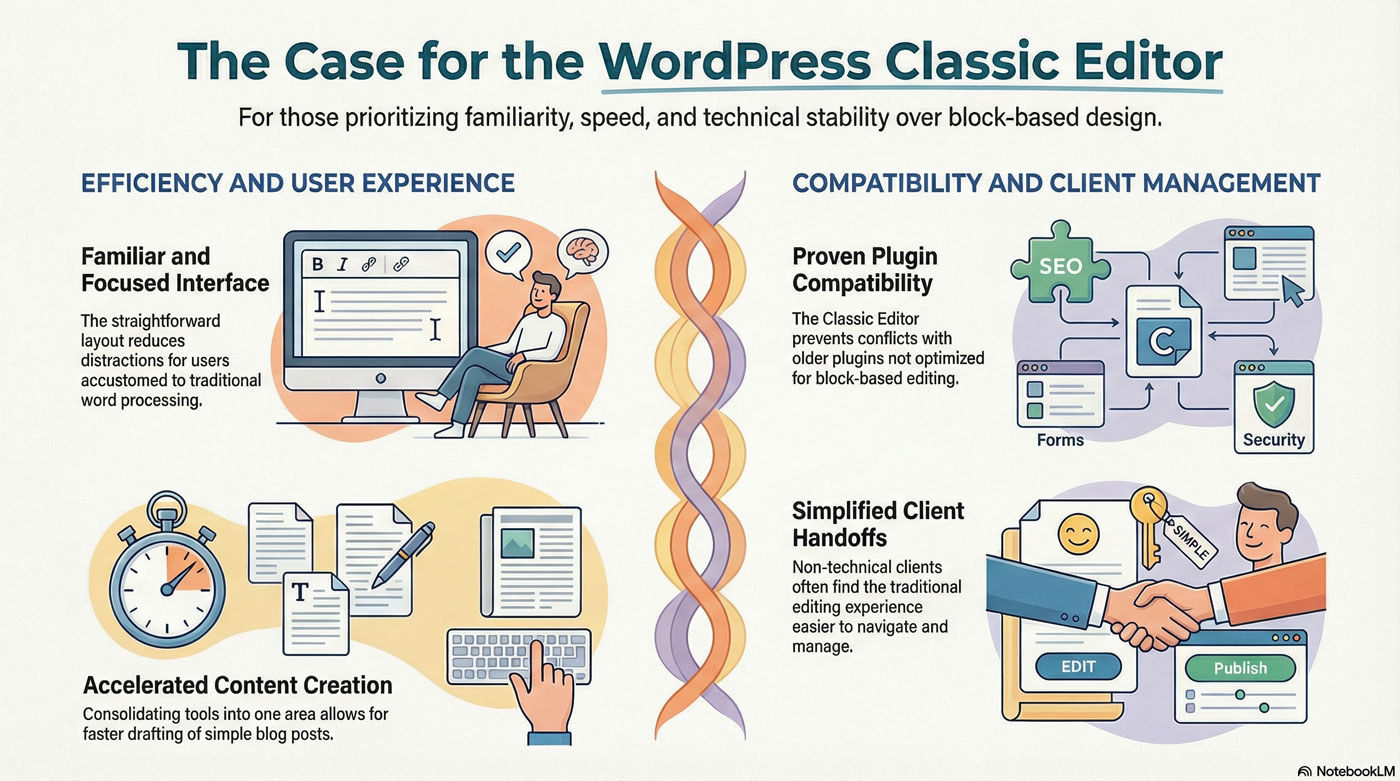
1️⃣ Easier and More Familiar Interface
Users who have worked with WordPress for years are accustomed to the Classic Editor layout. The old editor feels straightforward and less distracting.
2️⃣ Faster Content Creation
For simple blog posts, the Classic Editor can be quicker since everything is in one editing area.
3️⃣ Plugin Compatibility
Some older plugins are not fully optimized for the block editor.
4️⃣ Client Simplicity
If you manage websites for clients, especially non-technical users, they may prefer the traditional editing experience.
For many long-time WordPress users, disabling Gutenberg simply makes content editing easier and more comfortable.
Method 1: Disable Gutenberg Using a Plugin (Recommended for Beginners)
The easiest way to disable Gutenberg is by installing the Classic Editor plugin.
Step-by-Step Guide
- Log in to your WordPress dashboard.
- Go to Plugins → Add New.
- Search for Classic Editor.
- Install and activate the plugin developed by WordPress Contributors.
After activation, WordPress will automatically replace Gutenberg with the Classic Editor.
Why Use a Plugin?
No coding required
Safe for beginners
Can switch back anytime
Officially supported
This method is ideal if you are not comfortable editing theme files.
Method 2: Disable Gutenberg Without a Plugin (Using Code)
If you prefer not to install extra plugins, you can disable Gutenberg by adding a simple code snippet to your theme’s functions.php file.
⚠️ Important: Always use a child theme to avoid losing changes after theme updates.
Disable Gutenberg for the Entire Website
Add this code to your functions.php file:
// Disable Gutenberg for posts
add_filter('use_block_editor_for_post', '__return_false', 10);

// Disable Gutenberg for widgets
add_filter('use_widgets_block_editor', '__return_false');
This disables the block editor for posts and widgets site-wide.
Plugin vs Code: Which Is Better?
| Method | Best For | Skill Level |
|---|---|---|
| Plugin | Beginners | Easy |
| Code | Developers | Intermediate |
If you’re managing multiple sites and want fewer plugins installed, the code method is ideal. If you want simplicity and safety, use the plugin method.
Frequently Asked Questions (FAQ)
Can I disable Gutenberg temporarily?
Yes. If you use the Classic Editor plugin, you can deactivate it anytime to restore Gutenberg.
Does disabling Gutenberg affect my website design?
No. Disabling Gutenberg only changes the backend editor interface. Your frontend design remains the same.
Is it safe to disable Gutenberg?
Yes. Both the plugin and code methods are safe when implemented correctly.
Can I disable Gutenberg only for certain users?
Yes. With custom code, developers can target specific roles and post types.
